
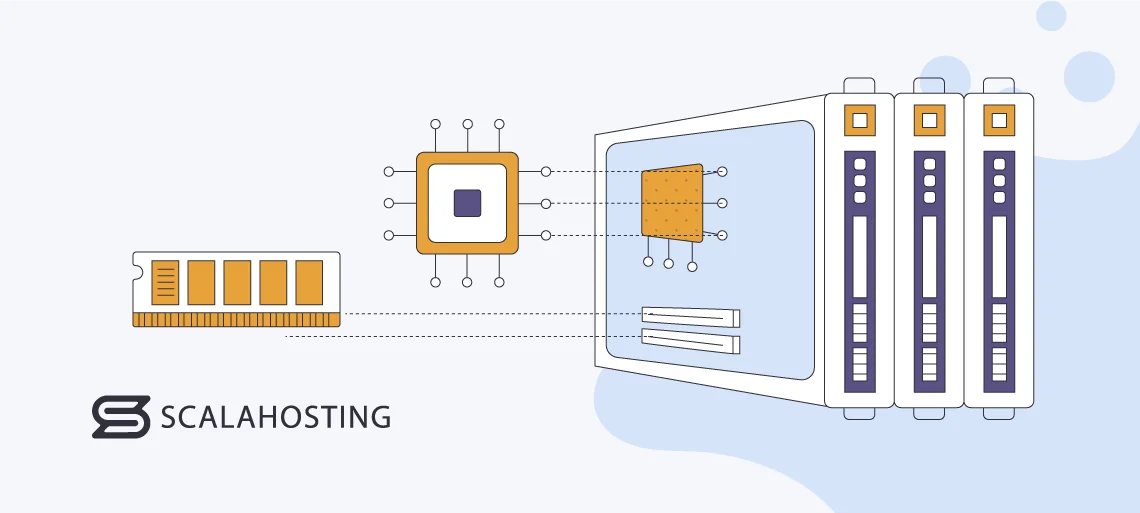
Choosing the right VPS hosting plan is more than picking a price tag. CPU, RAM, and SSD storage are the pillars that define your server’s performance. Which one matters most for your project? How much memory is enough? And why does SSD speed matter more than ever? Let’s break it down step by step so you make the best choice without guesswork.
Why VPS Resources Are Critical
Your VPS is not just a virtual server — it’s a dedicated slice of hardware, isolated for your use. The CPU decides how fast tasks are executed, RAM allows multiple operations to run smoothly, and SSD storage ensures fast read/write speeds. When any of these components are lacking, your users feel it immediately: slow pages, freezing dashboards, and frustrated clients. Have you ever waited 10 seconds for a page to load? That lag often points directly to VPS resources.
CPU: The “Brain” of Your VPS
The CPU processes all tasks on your VPS. When a visitor opens your website or when scripts generate reports, CPU does the heavy lifting. Imagine it as the engine of your car — more powerful cores mean faster acceleration, smoother handling under load, and no choking during peak traffic.
How Many vCores Are Needed?
- 1 vCore — basic landing pages, static sites.
- 2 vCores — small e-commerce, medium-traffic blogs.
- 4 vCores — SaaS platforms, dashboards, online stores.
- 8+ vCores — enterprise apps, streaming, heavy parallel workloads.
RAM: The Working Memory
RAM determines how many processes your VPS can handle simultaneously. If RAM runs out, the system swaps memory to disk, slowing everything down. Think of it as trying to work on a cluttered desk: you constantly push papers aside to make room. That’s what insufficient RAM feels like for your server.
Recommended RAM for Different Tasks
- 1–2 GB — simple WordPress or HTML sites.
- 4 GB — small businesses, online stores.
- 8 GB — CRM/ERP, medium SaaS applications.
- 16+ GB — large databases, high-load systems.
SSD Storage: The Speed Factor
SSD storage hosts your OS, files, and databases. NVMe SSDs are significantly faster than older SATA drives, with speeds up to 5000 MB/s vs 500 MB/s. Faster storage boosts page caching, database queries, backups, and system operations.
How Much SSD Do You Need?
- 20–40 GB — small websites, landing pages.
- 60–80 GB — small e-commerce, portfolios.
- 120–160 GB — SaaS, CRM, multiple projects.
- 200+ GB — media-heavy apps, large databases.
How CPU, RAM, and SSD Work Together
Think of VPS resources as a triangle. Weakness in one corner affects the whole system. A fast SSD cannot compensate for a slow CPU. Plenty of RAM won’t help if storage is maxed out. The best VPS plan balances CPU, RAM, and SSD according to your project’s demands.
| Resource | Effect | Recommended Use |
|---|---|---|
| CPU | Processing speed, handling multiple requests | Dynamic content, APIs, scripts, SaaS |
| RAM | Simultaneous operations, preventing swap to disk | High-traffic sites, WordPress with plugins, apps |
| SSD | Read/write speed, database access, caching | All modern websites, e-commerce, SaaS, media |
Tips for Choosing the Right VPS
- Estimate expected traffic and tasks.
- Check software requirements (WordPress, CRM, databases).
- Balance CPU, RAM, and SSD for your use case.
- Compare providers and pricing — for example, DeltaHost VPS hosting.
- Test the VPS under real load if possible.
- Adjust resources as your project grows.
Final Thoughts: Optimize Your VPS Resources
To summarize: CPU, RAM, and SSD are inseparable in determining VPS performance. Ignoring one can slow your project. Evaluate your project’s needs carefully, test configurations, and choose wisely. Your users will notice every millisecond of difference.
Ready to pick your VPS? Explore DeltaHost VPS hosting plans and find the perfect balance of CPU, RAM, and SSD for your needs.