
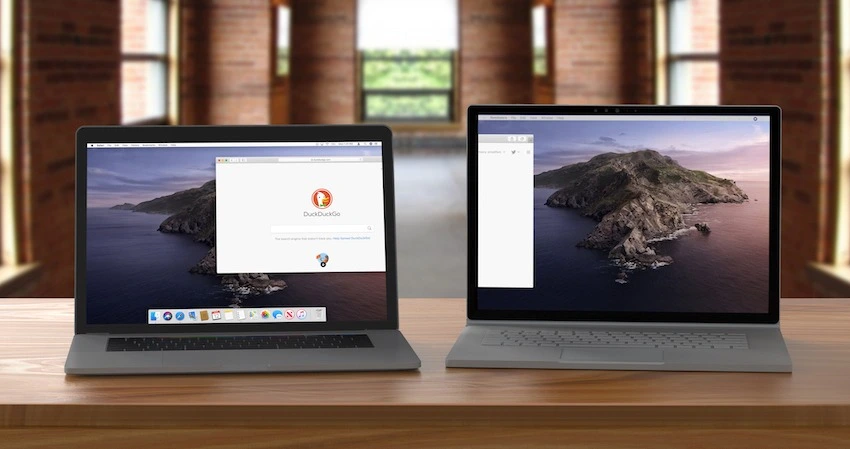
If you work on a laptop or desktop, you already know how limiting a single screen can feel. Switching between tabs, dragging windows, and managing multiple tasks slows everything down. That’s where download Duet Display for PC comes in. It lets you use your tablet or smartphone as a second display for your Windows PC, without buying an extra monitor.
In this blog post, we’ll walk through what Duet Display is, how to download it for PC, and why it’s a smart choice for productivity.
What Is Duet Display?
Duet Display is a screen-extension app that allows you to connect your Windows PC with another device, such as an iPad or Android tablet. Once connected, your extra device works like a real second monitor. You can drag apps onto it, extend your desktop, or mirror your main screen.
The app is popular with remote workers, students, designers, developers, and anyone who wants more screen space without extra hardware.
Why Use Duet Display on a PC?
Using Duet Display on a PC offers several clear benefits.
First, it increases productivity. With a second screen, you can keep emails open on one display while working on documents or browsing on the other.
Second, it’s portable. If you travel or work from different locations, you can turn your tablet into a monitor anywhere.
Third, it’s cost-effective. You don’t need to buy an external monitor or cables designed for displays.
For many users, Duet Display feels just like plugging in a real second screen.
System Requirements for Duet Display on Windows
Before downloading Duet Display for PC, make sure your system meets these basic requirements.
Your PC should be running Windows 10 or later.
You’ll need a compatible secondary device, such as an Android tablet, Android phone, or iPad.
A USB cable or a stable Wi-Fi connection is required for linking both devices.
Most modern laptops and desktops meet these requirements easily.
How to Download Duet Display for PC
Downloading Duet Display for PC is a simple process and takes only a few minutes.
Start by visiting the official Duet Display website and going to the download section. From there, choose the Windows version of the app and download the installer file. Once the file is downloaded, open it and follow the on-screen instructions to complete installation.
After installation, launch Duet Display on your PC. You’ll also need to install Duet Display on your tablet or phone from its app store. When both apps are running, connect your devices using a USB cable or Wi-Fi, and your second screen will activate.
How Duet Display Works After Installation
Once connected, Duet Display automatically extends your Windows desktop. You can move windows between screens just like a traditional dual-monitor setup. In the app settings, you can adjust resolution, frame rate, and display orientation to match your preferences.
If you want the smoothest performance, a wired USB connection is usually best. Wireless mode is convenient and works well on strong networks, especially for general tasks like browsing, writing, or presentations.
Who Should Use Duet Display?
Duet Display is ideal for many types of users.
Students can keep notes open on one screen while attending online classes on the other.
Remote workers can manage chats, emails, and tools more efficiently.
Designers and editors can use the extra screen for tool panels or previews.
Programmers can run code on one display and documentation on another.
If you often feel limited by a single screen, Duet Display is a practical upgrade.
Final Thoughts
Downloading Duet Display for PC is an easy way to expand your workspace without spending money on new hardware. It’s flexible, easy to set up, and works well for everyday productivity. Whether you’re working from home, studying, or multitasking on the go, Duet Display turns your tablet or phone into a powerful second monitor in minutes.
If you want, I can also rewrite this post in a more SEO-optimized format, add FAQs, or tailor it for a tech or productivity blog.